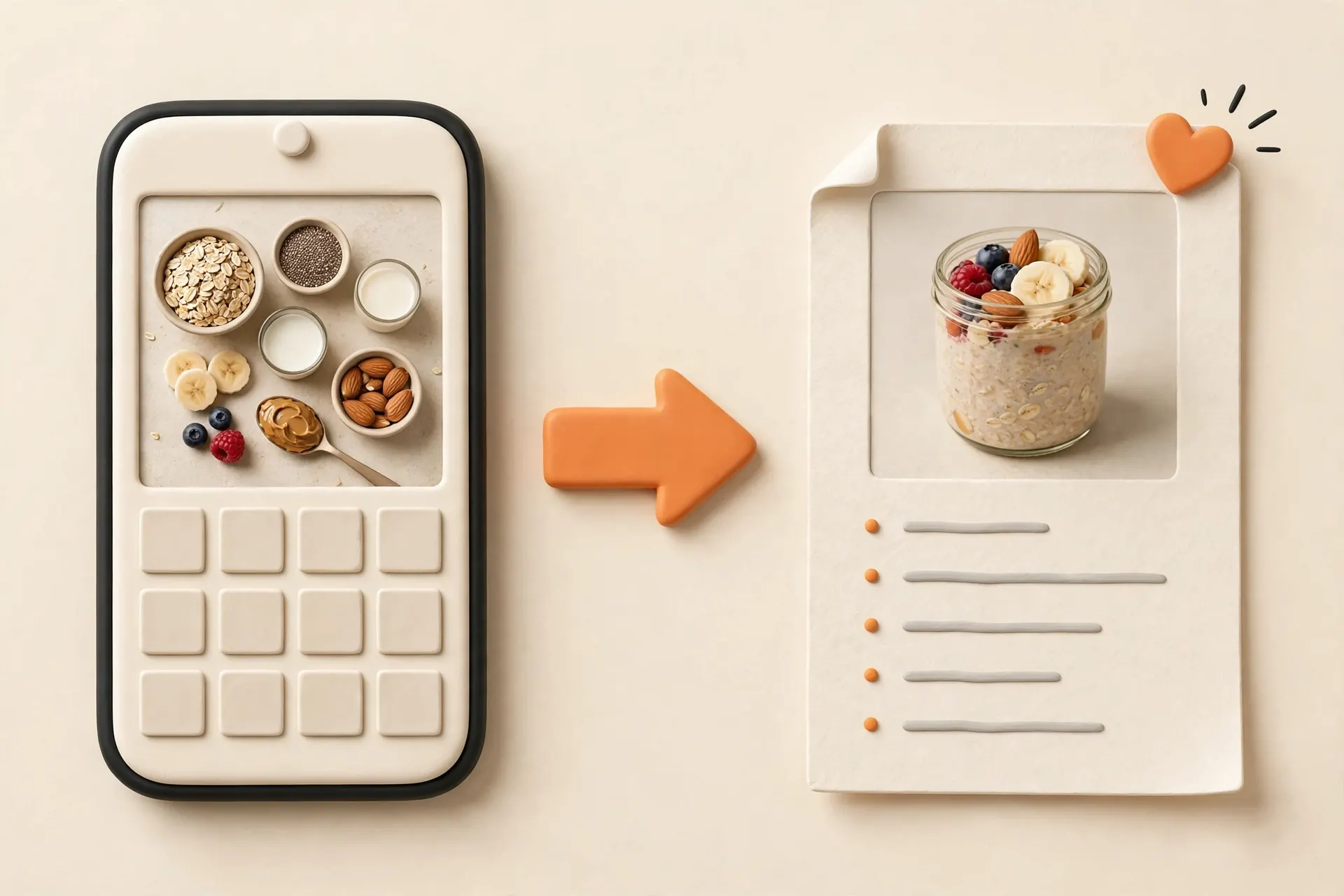
The fastest way to turn a recipe screenshot into something cookable is to import it through Hireci’s photo import: open Add a recipe, choose the screenshot, and keep the extracted ingredients and directions as an editable recipe. Review the result against the original image — screenshots vary in quality, and a quick check is what makes the imported recipe trustworthy.
Screenshotting a recipe is the easiest save in the world, which is exactly why it fails. The screenshot lands in a camera roll of thousands of photos, impossible to search, and slowly sinks out of sight. This guide explains how to rescue those screenshots: import them as real recipes, know what makes an import succeed, and clear out the pile once it’s done.
The camera-roll recipe pile
Think about how a recipe screenshot actually lives on your phone. It sits between a parking spot photo and a boarding pass, filed by date, with no title, no tags, and no ingredient list your phone can search. iOS can find text in photos now, but “chicken” matches every photo that ever contained the word — a menu, a label, a caption. That’s not a recipe search.
Then there’s the duplication problem. You screenshot a recipe on Monday, forget about it, and screenshot the same one again on Thursday. Now there are two copies and still no recipe. And the screenshots you take in a hurry — half the ingredient list cut off, a notification banner across the steps — were barely readable on the day you took them.
None of this is a personal failing. Screenshots are a capture tool, not a storage system. They did their job the moment they preserved the information. Everything after that — finding it, reading it, cooking from it — needs somewhere better to live.
Import from photos, step by step
Open Hireci and choose Add a recipe → Import from photo. Select the screenshot from your photo library. Hireci reads the text in the image and builds a recipe from it: ingredients, amounts and steps where it can find them.
Import one recipe at a time. If a recipe spans two screenshots — the ingredients on one, the directions on the next — import both, then merge them into a single recipe and delete the spare. A recipe that lives in two places is a recipe you’ll misread.
As always, review before you trust it. Compare the imported ingredients and steps with the original screenshot. Photo imports are only as good as the image they read, and this is the step that turns a decent guess into a recipe you can hand to someone else. Our screenshot recipe converter guide covers the full workflow, including what to do when the text doesn’t come through cleanly.
What makes a screenshot import well
Not all screenshots are equal. The ones that import cleanly share a few traits, and knowing them changes how you screenshot in the first place:
- Capture the recipe text, not the dish. A beautiful photo of the finished meal contains zero recipe information. Screenshot the ingredient list and the directions.
- Get the whole recipe in the frame. An ingredient list cut off mid-sentence forces you to guess. Scroll and take two screenshots rather than one cropped one.
- Avoid heavy overlays. Watermarks, sticker text and notification banners across the recipe text confuse the extraction. Re-screenshot cleanly when you can.
- Prefer the source page. If the screenshot came from a recipe blog, importing the original page link works even better than the photo — see our guide to saving recipes from websites. Use the screenshot for what has no link: a cookbook page, a video frame, a friend’s message.
When a screenshot is blurry or badly cropped, don’t fight it. Retake it if the source is still available, or type the short parts in manually. Ten seconds of typing beats a recipe with a mystery ingredient.
Delete the screenshots after you import
Once a screenshot has become a reviewed recipe, it has no job left. Delete it from the camera roll. This is the part people skip, and it’s the part that keeps the system working: every screenshot you keep “just in case” is a future duplicate to sort through.
If deleting feels risky, use a holding album. Make an iOS album called To import, move recipe screenshots there when you take them, and empty it as you import. The album is your inbox; Hireci is the archive. An empty inbox means everything you saved is a recipe you can find, cook and shop from — which was the point of the screenshot in the first place.
The screenshot rescue checklist
- Each screenshot became one imported recipe.
- Ingredients, amounts and steps were checked against the image.
- Multi-screenshot recipes were merged into one.
- The recipe has a searchable name.
- The original screenshots are deleted or out of the way.
That’s the whole rescue operation. The camera roll goes back to being photos, and the recipes go somewhere they can actually be used.